The workspace for robot operations
Your robot fleet.One clear view.
See the floor. Understand the exception. Make the next move.
Inspection, assembly and fulfillment in one 3D workspace.
Interactive simulation · No sign-up required
The product, in your hands
One site. Every moving part.
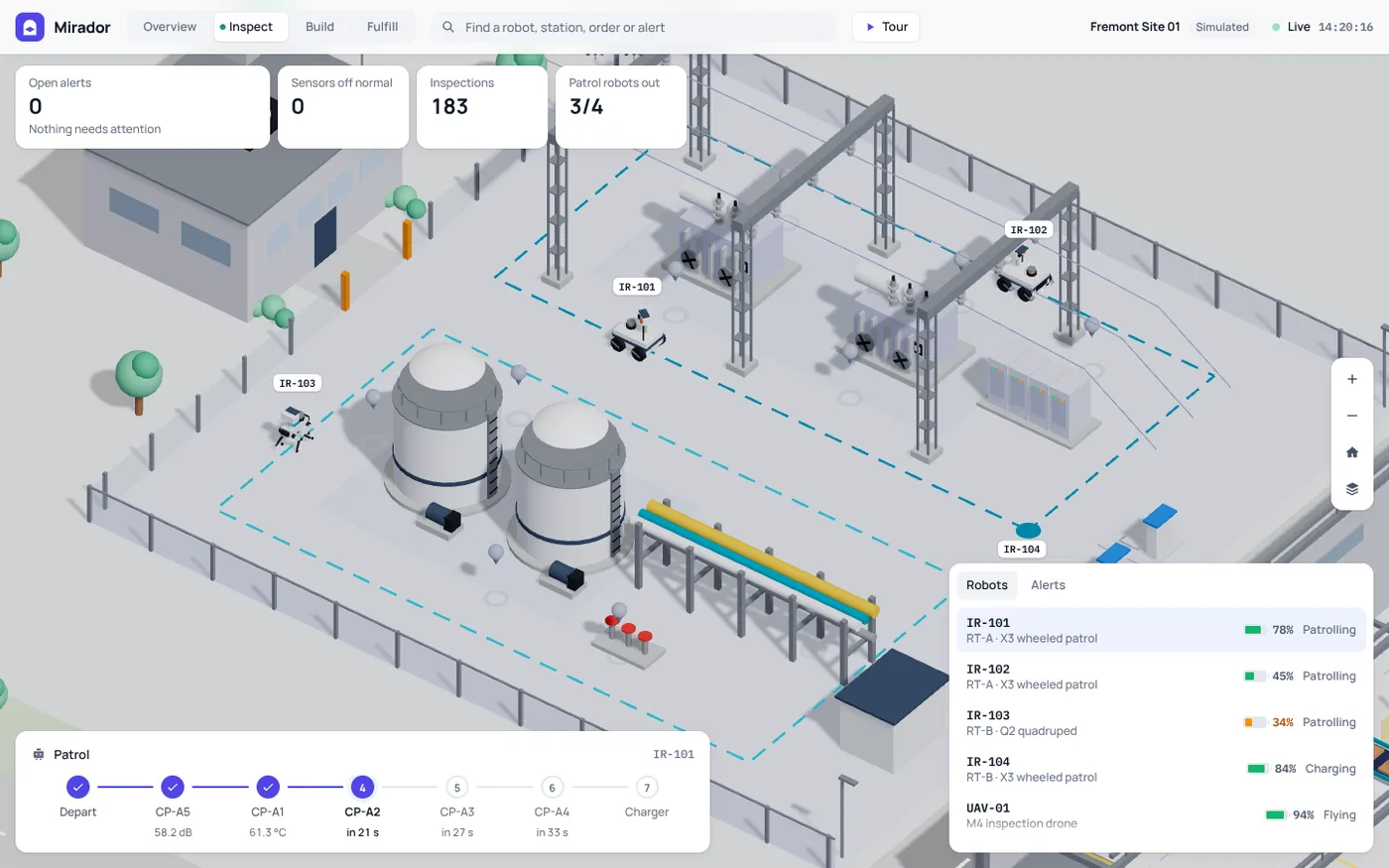
Explore the live simulation. Select a robot, search a sensor or follow an order.
Activate the preview to interact, or open the full demo. Start with Tour for a guided introduction.
Built around the work
From a signal to your next move.
Choose a workflow to see how the platform brings the right context together.
Inspection teams
A reading is only useful with context.
Go from a sensor on the map to its latest reading, recent trend and thermal evidence.
- Search a sensor by ID
- Inspect its trend and thermal image
- Locate the robot that took the reading
AI planning preview
Give the goal.
Stay in control.
Explore a different way to manage robots: describe the outcome, review the plan and step in at the decisions that need you.
Try AI planning (opens in a new tab)“Move 12 kits to Line 2.
Keep the east walkway clear.”
- 01
Review the plan
See the selected robots, route and constraints before approving.
- 02
Approve the exception
If the drop-off is blocked, review an alternative before anything changes.
- 03
Get the outcome
See what arrived, where it went and what changed along the way.
A separate, simulated planning prototype.
52 seconds inside Mirador
See the platform at work.
Go from the whole site to a sensor, an alert and a robot’s task. Jump to any step.
Read the walkthrough
- Site overview. Start with the whole site. Inspect, Build and Fulfill share one 3D view.
- Find a sensor. Open Inspect. Search CP-A2 to go straight to that sensor.
- Inspect the evidence. Read its temperature, recent trend and thermal image in one panel.
- Open an alert. Open Alerts. Select a stopped station to see what needs attention.
- Follow the response. Check the affected station, assigned technician and repair status.
- Select a robot. Select a warehouse robot. Check its battery, load and available controls.
- Track the task. Follow its job: collect the pod, deliver it to a pick station, then return it.
- Explore the platform. Try the same 3D platform yourself. Open the demo and choose Tour.
Recorded platform footage, edited with close-ups. Captions sit below the interface.
Before you dive in
About the demo.
What can I try today?
The interactive 3D site includes inspection, assembly and fulfillment. Search a sensor, select robots and stations, inspect alerts or follow an order. Use Tour inside the demo for a guided introduction. It runs in your browser without an account.
Which robots and devices are included?
Explore wheeled and legged patrol robots, an inspection drone, assembly stations, material AGVs, forklifts, goods-to-person drive units, cube storage robots, case handlers and parcel sorters. Preview the interface on Desktop, iPhone, Android, iPhone Duo or iPad, with portrait, landscape or foldable views where applicable. These are viewport previews; open the full demo to use your own screen.
How does the AI planning preview work?
Describe a delivery of 1–48 kits to Line 1 or Line 2. A bounded local planner chooses available robots and protects the east walkway. Review the plan before it starts, approve a new destination if the unloading point is blocked, then see the delivery report. This is an interaction prototype, not a connected AI model.
Is this connected to a real fleet?
This is a product concept with simulated data and robots. The 3D site and AI planning preview run as separate browser simulations. Changes in one do not control the other or a physical robot.
Your next step
Take a look around.
Start with the site. Find a robot. Follow the work.